/dev/tty /dev/ttyS0

2023-11-04 01:32
文章标签 dev tty ttys0

本文主要是介绍/dev/tty /dev/ttyS0,希望对大家解决编程问题提供一定的参考价值,需要的开发者们随着小编来一起学习吧!

/dev/tty /dev/ttyS0 /dev/tty0区别  2012-05-14 22:41:49

分类: LINUX

1、串行端口终端(/dev/ttySn)   串行端口终端(Serial Port Terminal)是使用计算机串行端口连接的终端设备。计算机把每个串行端口都看作是一个字符设备。有段时间这些串行端口设备通常被称为终端设备,因为 那时它的最大用途就是用来连接终端。这些串行端口所对应的设备名称是/dev/tts/0(或/dev/ttyS0), /dev/tts/1(或/dev/ttyS1)等,设备号分别是(4,0), (4,1)等,分别对应于DOS系统下的COM1、COM2等。若要向一个端口发送数据,可以在命令行上把标准输出重定向到这些特殊文件名上即可。例如, 在命令行提示符下键入:echo test > /dev/ttyS1会把单词”test”发送到连接在ttyS1(COM2)端口的设备上。
3、控制终端(/dev/tty)   如果当前进程有控制终端(Controlling Terminal)的话,那么/dev/tty就是当前进程的控制终端的设备特殊文件。可以使用命令”ps –ax”来查看进程与哪个控制终端相连。对于你登录的shell,/dev/tty就是你使用的终端,设备号是(5,0)。使用命令”tty”可以查看它 具体对应哪个实际终端设备。/dev/tty有些类似于到实际所使用终端设备的一个联接。   
4、控制台终端(/dev/ttyn, /dev/console)   在Linux 系统中,计算机显示器通常被称为控制台终端 (Console)。它仿真了类型为Linux的一种终端(TERM=Linux),并且有一些设备特殊文件与之相关联:tty0、tty1、tty2 等。当你在控制台上登录时,使用的是tty1。使用Alt+[F1—F6]组合键时,我们就可以切换到tty2、tty3等上面去。tty1–tty6等 称为 虚拟终端,而tty0则是当前所使用虚拟终端的一个别名,系统所产生的信息会发送到该终端上(这时也叫控制台终端)。因此不管当前正在使用哪个虚拟终端, 系统信息都会发送到控制台终端上。
/dev/console即控制台,是与操作系统交互的设备,系统将一些信息直接输出到控制台上。目前只有在单用户模式下,才允许用户登录控制台。 

tty:
如果一个进程有控制终端的话,/dev/tty 就是它的控制终端,这个东西不是固定的,不同的程序打开这个    设备文件可能指向的终端不同。
    #echo "test" > /dev/tty
    test
tty0:
    tty1 –tty6等称为虚拟终端,而tty0则是当前所使用虚拟终端的一个别名,系统所产生的信息会发送到
    该终端上。因此不管当前正在使用哪个虚拟终端,系统信息都会发送到控制台终端上。
    #echo "test" > /dev/tty0
    test
    (注意:好像要在文本模式下才可以)

/dev/tty主要是针对进程来说的,而/dev/tty0是针对整个系统来说的
就是说同是/dev/tty文件,对不同的进程来说,其具体指向是不同的。
但不管对那个进程来说/dev/tty0指向的都是当前的虚拟终端.


UNIX Power Tools

UNIX Power ToolsSearch this book
Previous: 38.5 The ps Command Chapter 38
Starting, Stopping, and Killing Processes
Next: 38.7 Why ps Prints Some Commands in Parentheses
 

38.6 The Controlling Terminal

In article 38.5 , we pointed out that the ps command needs special options ( -x for BSD and -e for System V) to list processes without a controlling terminal.

But just what is a controlling terminal? Just what it sounds like: the terminal from which the process was started. In the ps listing, this is usually given as a tty , or terminal id. That ps entry usually corresponds to a serial port, or a pty ( 41.8 ) . A pty or "pseudo-terminal" is a construct that makes a window or network login ( 1.33 ) look to the operating system just like a terminal.

In the ps listing, a tty might appear as t1 for /dev/tty1 , p3 for /dev/ttyp3 , or as some other designation, such as co for/dev/console , the full screen display of a workstation before any window system is started. Processes without a controlling terminal show a question mark ( ? ).

How does a process "lose" its controlling terminal? Easy. Some processes, such as system "daemons" ( 1.14 ) never had one - they were started by system scripts that weren't started from any terminal, or they disconnected themselves from their controlling terminals. But it's also possible that you started a process running in the background, logged out, and logged back later or on another terminal to find it still running without a controlling terminal.

The tty command can be used to report which "terminal" you're currently connected to. For example:

% 

tty
/dev/ttyp2

Running tty without a controlling terminal gives the message not a tty .


Explaining The Terminal Welcome Screen3

Terminal

Share
Tweet
Explaining The Terminal Welcome Screen

Hey

A couple of days ago I received an email asking me to explain Terminal’s welcome screen. For new users this can be quite confusing and many wonder what each parts mean. This post is going to be a quick introduction on what each line means and way it is there. I will also have a couple of links to posts explaining each part in more detail. If you have any questions please leave a comment below.

When you start Terminal you should see something like this.

Terminal Screen Shot

or

Last login: Sat Jan 16 18:34:23 on ttys000
Welcome James
dyn240089:~ James$

The first line:

Last login: Sat Jan 16 18:34:23 on ttys000

is all about when you last logged into your Terminal, this can be semi useful if you use remote login or similar to see when the last log in was. Most of the time I ignore it since I can never remember when I last used Terminal.

The final part ttys000 is the Terminal you have logged into. It comes from when computers were a lot slower and older. You can find more information over on this Computer Terminal wiki page. The ttys, starts at zero and increases as you open more Terminal windows.

The second line:

Welcome James

is you message of the day. I can’t remember the original how ever you can change it by following thispost. You could add something witty, or reduce the amount of space on screen by deleting any of the text.

The final line:

dyn240089:~ James$

is made up of two parts. The first is your computer. This can be named from System Preferences > Sharing, text box at the top of the page. Most of the time this can be changed by you. However sometimes the network you connect to (as is the case with mine) will change it. It can vary sometimes local host is displayed. Keep an eye on it to make your you are using the right Terminal, especially if you have ssh’d or are using remote log in.

The final part, after the colon, is the short name of the current user. This should be who  you are logged in with. If you are using ssh, this will change.

There isn’t a lot too the three lines in Terminal, however for new people this may be quite difficult to understand. If you have any questions please leave a comment. Alternatively you can find more information in some books. I recommend Mac OS X Unix Toolbox and The Mac OS X Command Linefrom Amazon.


这篇关于/dev/tty /dev/ttyS0的文章就介绍到这儿,希望我们推荐的文章对编程师们有所帮助!


http://www.chinasem.cn/article/342302

相关文章

v0.dev快速开发

探索v0.dev:次世代开发者之利器 今之技艺日新月异,开发者之工具亦随之进步不辍。v0.dev者,新兴之开发者利器也,迅速引起众多开发者之瞩目。本文将引汝探究v0.dev之基本功能与优势,助汝速速上手,提升开发之效率。 何谓v0.dev? v0.dev者,现代化之开发者工具也,旨在简化并加速软件开发之过程。其集多种功能于一体,助开发者高效编写、测试及部署代码。无论汝为前端开发者、后端开发者

LVM 'Can’t open /dev/sdb1 exclusively. Mounted filesystem?' Problem

在将几块盘做LVM时,遇到一个之前都没遇到过的问题: root@ubuntu:~# pvcreate /dev/sdc1Can't open /dev/sdc1 exclusively. Mounted filesystem? 首先第一反应就是查看这个分区是否已经在使用了,但是没有。 查看硬盘的一些信息: root@ubuntu:~# cat /proc/partitionsmajo

Linux 挂载须知: mount 一些小问题 mount: no medium found on /dev/sr0

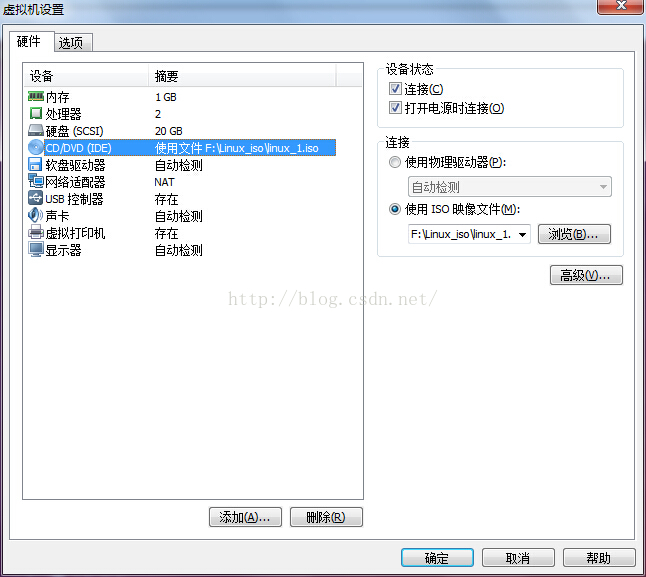
我属于window+VM+ubuntu的配置,有时需要把windows上的文件,挂载到虚拟机上去。然后每次使用命令的时候会出现如下的问题:                其实解决问题很简单,但是由于我自己的粗心而花费了很长的时间:    这个时候一定要确认,虚拟机的设置处是否勾选了   具体如下图所示:                 然后按照  如下的命令:   mount

Ubuntu上安装libdc1394-22-dev出现无法定位安装包的解决办法

一、libdc1394-22-dev介绍       libdc1394-22-dev 是一个开发库,用于与IEEE 1394 (FireWire)摄像头进行交互。具体来说,它是 libdc1394 的开发版本,提供了开发者头文件和链接库,方便在应用程序中集成对基于 IEEE 1394 标准的数码相机的支持。 主要功能: - IEEE 1394 (FireWire) 协议:这是一个支持高速数据

App使用Job中遇到的WAIT DEV_NOT_DOZING的解决方案

摘要: 由于原生Job机制会使用Doze的白名单,故遇到WAIT:DEV_NOT_DOZING现象,一般配置为Whitelist user apps名单即可解决问题 Doze名单类型 配置对象 配置方法 影响 Whitelist user apps 第三方应用 1.Adb shell 命令:adb shell dumpsys deviceidle whitelist +com.t

Dev C++:简单步骤下载与安装指南

1. 前言 在当今这个数字化时代,编程已成为连接创意与技术的桥梁,它不仅推动着科技的进步,也深刻地改变着我们的生活方式。对于初学者而言,选择一款合适且易于上手的集成开发环境(IDE)是学习编程旅程中的重要一步。而Dev C++,作为一款轻量级且功能强大的C/C++编程工具,凭借其简洁的界面、丰富的功能以及良好的兼容性,成为了众多编程爱好者尤其是C/C++初学者的首选。 本指南旨在为广大编程爱好

/dev/null笔记

/dev/null      是个黑洞,进去的东西永远出不来,它是一个空设备文件    在脚本编程的时候经常会用它(空设备文件)来屏蔽标准或错误输出(stdout 或 stderr)。 >      重定向输出,覆盖文件 >>     重定向输出,不覆盖文件 &      等同于 UNIX有几种输入输出流,与数字的对应关系如下:      0-标准输入流(stdin)

git合并dev分支的多个commit到master分支

这里主要使用新建指定位置分支,rebase,以及删除新建分支,三步操作进行 1.新建到合并的commit处的branch git checkout -b newbranch 74b73d6a 后面跟得的是commit_id,这个commit是最后需要合并到的那个[ , commit_id] 2.rebase到master git checkout mastergit rebase ne

React npm run dev jQuery 报错

最近研究React    cnpm  install   后     npm  run dev   报错 与  jquery和jQuery有关 有可能是jquery 与  jQuery 冲突了   尝试好几次后最终想到的办法是  删掉  node_modules  里面的 _jQuery@1.7.4@jQuery 重新  npm  run dev     通过

为什么生成设备号过后,还要去板子mknod /dev/led c 11 0来生成设备文件呢?

在Linux系统中,生成设备号(通过MKDEV宏或类似方式)和创建设备文件(如使用mknod命令)是两个不同的步骤,它们各自承担着不同的职责。 为什么需要生成设备号? 设备号是内核用来唯一标识和管理设备的。每个设备都有一个主设备号和次设备号,其中主设备号标识了设备的类型(如硬盘、字符设备等),而次设备号则用于在同一类型的设备中区分不同的设备实例。生成设备号是在内核层面进行的,它确保了设备在内核